So I was recently asked by a client: "Why is the time on my PC 5 minutes off from my phone?"
Now this is a small environment, a very small environment (1 Server and 7 workstations). The first thing I thought about was what does the server clock look like? So I remoted into the server and sure enough it had the same time as the workstation.
I went and checked the registry and found that the server was pointed get its time from time.windows.com, but for some reason that was not working.
I then used the following command to point it to several of the pools hosted by NIST.gov
w32tm /config /manualpeerlist:time-a-g.nist.gov,time-b-g.nist.gov,time-c-g.nist.gov,time-d-g.nist.gov /syncfromflags:manual /reliable:yes /update
After that I restarted the W32Time (Windows Time) service to make the update work.
Once that is done it should force a resync of the time service which could take some time to update and to sync with all the workstations.
I hope you find this post helpful, and if so please share it with your friends.
Showing posts with label Windows 7. Show all posts
Showing posts with label Windows 7. Show all posts
Friday, August 9, 2019

Wednesday, January 30, 2019
The More You Know: Unlocking Windows God Mode
Today I wanted to talk about this is a little known feature that has existed on in Windows based workstations since at least Windows 7 when I first heard about it. Since then this "folder" for lack of a better work has been following me around to every PC I have had since then.
At first glance it looks like your Windows Control Panel on Steroids

As you can see from the screen shot, There are about 219 (on my machine, your mileage may vary) settings that you can edit.
To gain access to this you first need to start off by creating a new folder. When the folder is created and you are asked to give it a name you will need to insert this String into the field.
Press Enter and the icon will change from this

To this

I hope you found this helpful and informative, and I look forward to you coming back soon.
At first glance it looks like your Windows Control Panel on Steroids

As you can see from the screen shot, There are about 219 (on my machine, your mileage may vary) settings that you can edit.
To gain access to this you first need to start off by creating a new folder. When the folder is created and you are asked to give it a name you will need to insert this String into the field.
GodMode.{ED7BA470-8E54-465E-825C-99712043E01C}
Press Enter and the icon will change from this
To this
I hope you found this helpful and informative, and I look forward to you coming back soon.
Friday, January 25, 2019
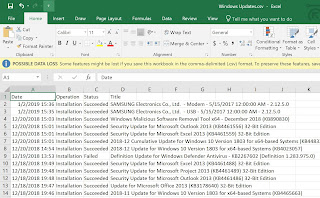
PowerShell - Windows Update report to .CSV
A while back I was asked by my boss to come up with a way to get a report of all the Windows Updates installed on a remote server that is at a client's site and that we do not have access to.
I thought to myself that he must be crazy to think that we could even find a utility that would enable us to do that.
Well..... Apparently with the right Power Shell Commands you can do it. Here is the Syntax for the Script that you will need to save as a .ps1
The result looks something like this:
I hope you find this post helpful and are able to use this going forward.
I thought to myself that he must be crazy to think that we could even find a utility that would enable us to do that.
Well..... Apparently with the right Power Shell Commands you can do it. Here is the Syntax for the Script that you will need to save as a .ps1
$Session = New-Object -ComObject "Microsoft.Update.Session"
$Searcher = $Session.CreateUpdateSearcher()
$historyCount = $Searcher.GetTotalHistoryCount()
$Searcher.QueryHistory(0, $historyCount) | Select-Object Date,
@{name="Operation"; expression={switch($_.operation){
1 {"Installation"}; 2 {"Uninstallation"}; 3 {"Other"}}}},
@{name="Status"; expression={switch($_.resultcode){
1 {"In Progress"}; 2 {"Succeeded"}; 3 {"Succeeded With Errors"};
4 {"Failed"}; 5 {"Aborted"}
}}}, Title | Export-Csv -NoType "$Env:userprofile\Desktop\Windows Updates.csv"
The result looks something like this:

I hope you find this post helpful and are able to use this going forward.
Friday, July 6, 2018
Windows Update cannot currently check for updates because the service is not running
I recently ran into an issue where a client of mine had a issue with Windows Update failing to run. It gave the end user a pop up error message that looks like this:


Once you click okay you will then see this on the Window's Update screen. Clicking Check for updates will result in the same message.

I did some googling and found that if I Stop the Windows Update service and then delete or rename C:\Windows\SoftwareDistribution and then restart the service you would then be able to run Windows update. However this did not work.
I then found a Microsoft Support KB article KB3102810 which will allow you to download an update which will resolve the issue. After the update is installed you will need to stop the Windows Update Service again, delete or rename the Software Distribution folder and restart the machine. Once it comes back up you can then click Check for Update and after about an hour (because it now has to rebuild it's update catalog) you will get a similar screen to what you will see below.

Hope you find this helpful with your Windows update issues.
Wednesday, August 3, 2016
Scenario 003 - Mapping a network drive to a server in a workgroup environment
Back Story:
Recently I was working at a client who have a Windows Server 2012 R2 Essentials server not setup in as an Active Directory Domain. The client machines are Windows XP SP 3 x86 system and they are running a DOS application that is the back bone of their business. It serves as CRM, billing, and inventory system. Everything was working just fine when one of their client machines died (System Board died) so they needed to purchase a replacement system. They went with a brand new Dell Optiplex running Windows 7 x64 system.
When I went down to setup the system I discovered that the DOS program would not work (no shock there) however even compatibility mode failed me this time (although I don't think I have ever seen it work). So my choices were to try and rebuild the system as Windows XP or build a VM that runs Windows XP. Obviously since they do not make drivers for Windows XP anymore for newer systems so I installed VMware Workstation Player on the computer and build a Windows XP virtual machine.
Once the machine was built I then needed to map a network drive to the server that was hosting the DOS application. I was able to map the drive using Windows Explorer but found out that once I did a reboot the credentials did not keep (even after checking the box that said remember credentials).
Problem:
Windows XP Virtual Machine will not keep credentials for network drive after log off or reboot. The drive would continue to be mapped however end user would need to provide credentials for Server every time. Both Server and Workstation are in a Workgroup and not a Domain.
Solution:
I created a logon script and placed it the startup folder of the user account that would remap the drive at every login and would use the credentials on the server to allow the workstation to access the application.
The syntax I used was:
NET USE G: \\SERVERNAME\SHARENAME /USER SERVERNAME\USERNAME PASSWORD
NOTE: I was not the one who setup this network so unfortunately it was not setup the way that I would have done it so I had to jump through all these hoops to get the job done.
Recently I was working at a client who have a Windows Server 2012 R2 Essentials server not setup in as an Active Directory Domain. The client machines are Windows XP SP 3 x86 system and they are running a DOS application that is the back bone of their business. It serves as CRM, billing, and inventory system. Everything was working just fine when one of their client machines died (System Board died) so they needed to purchase a replacement system. They went with a brand new Dell Optiplex running Windows 7 x64 system.
When I went down to setup the system I discovered that the DOS program would not work (no shock there) however even compatibility mode failed me this time (although I don't think I have ever seen it work). So my choices were to try and rebuild the system as Windows XP or build a VM that runs Windows XP. Obviously since they do not make drivers for Windows XP anymore for newer systems so I installed VMware Workstation Player on the computer and build a Windows XP virtual machine.
Once the machine was built I then needed to map a network drive to the server that was hosting the DOS application. I was able to map the drive using Windows Explorer but found out that once I did a reboot the credentials did not keep (even after checking the box that said remember credentials).
Problem:
Windows XP Virtual Machine will not keep credentials for network drive after log off or reboot. The drive would continue to be mapped however end user would need to provide credentials for Server every time. Both Server and Workstation are in a Workgroup and not a Domain.
Solution:
I created a logon script and placed it the startup folder of the user account that would remap the drive at every login and would use the credentials on the server to allow the workstation to access the application.
The syntax I used was:
NET USE G: \\SERVERNAME\SHARENAME /USER SERVERNAME\USERNAME PASSWORD
NOTE: I was not the one who setup this network so unfortunately it was not setup the way that I would have done it so I had to jump through all these hoops to get the job done.
Tuesday, August 2, 2016
Scenario 002 - Computer Hard Disk Drive crashed or not working
Recently I was picking my kids up from a family friend's house and through normal chit chat in the conversation it was brought up that their family computer's HDD had failed or "Crashed". After giving them my sympathy for their loss (some work document and Tons of Family Photos and Videos) something clicked in my brain. I have been out of the game for a long time in terms of being a full time desktop support technician, not to say that I do not do it, however my sights are now on Virtualization and Messaging these days. Anyway back in the day when I used to work for large companies doing desk side support where end users would prefer to save data to their local HDD rather than network drive due to 10 Meg Ethernet or Token Ring network connection (no this is not meant to age me but rather how old the network was).
So lets just say that because this was the norm for their corporate culture we had a lot of issues with people losing data. However my team and I became very good at performing miracles and bring a drive back from the dead.
While this is still in my head I figured I would share this information with you.
Please note that I am not taking responsibility for any damage that you may do to equipment. This is just to share my war stories and if it helps someone out of a bind then great!
Issue:
Drive will not spin up or there is a clicking noise
Solution:
Try sticking the HDD into the freezer for a few hours (we used to do about 16 hours) and then try to power the drive up again. More times than not it will work but your time is limited so get your data quickly.
Notes:
Do not put your drive on top of ice or anything moist (putting it into a plastic bag might be smart).
Issue:
Drive powers on and spins with no clicking but is not detected by OS or BIOS.
Solution:
Here is where working for a large company with tons of machines with the same model comes in handy. If you have a spare drive that is the same Make and Model you can use a torx screw driver to take the controller card off of the drive and put it onto the defective drive. This should allow the drive to be seen by the OS so you can get your data off.
Notes:
By doing this you are voiding the warranty of your drives so make sure you know the risk before you proceed.
So lets just say that because this was the norm for their corporate culture we had a lot of issues with people losing data. However my team and I became very good at performing miracles and bring a drive back from the dead.
While this is still in my head I figured I would share this information with you.
Please note that I am not taking responsibility for any damage that you may do to equipment. This is just to share my war stories and if it helps someone out of a bind then great!
Issue:
Drive will not spin up or there is a clicking noise
Solution:
Try sticking the HDD into the freezer for a few hours (we used to do about 16 hours) and then try to power the drive up again. More times than not it will work but your time is limited so get your data quickly.
Notes:
Do not put your drive on top of ice or anything moist (putting it into a plastic bag might be smart).
Issue:
Drive powers on and spins with no clicking but is not detected by OS or BIOS.
Solution:
Here is where working for a large company with tons of machines with the same model comes in handy. If you have a spare drive that is the same Make and Model you can use a torx screw driver to take the controller card off of the drive and put it onto the defective drive. This should allow the drive to be seen by the OS so you can get your data off.
Notes:
By doing this you are voiding the warranty of your drives so make sure you know the risk before you proceed.
Subscribe to:
Posts (Atom)
-
 In a previous Post I mentioned an issue that I had with a Certificate template on my Internal Enterprise CA not showing up when I tried to r...
 -
So I recently started working more with PowerCLI. After my time at VMWorld 2019 (which I will cover in another post) I realized how powerfu...
-
So I have been looking for ways to expand my knowledge with PowerCLI. This whole effort came about from going to VMWorld 2019 in San Francis...