So last night I was called into our Data Center due to an outage. Once everything came back up we noticed an issue with our Exchange Archive Server which lives at that Data Center. From outlook we were not able to access our In-Place Archives, however we could do it from OWA (Weird Right?)
This morning I looked into the issue further and when I tried to open the Exchange Management Shell on that server I got this message 3 times.
New-PSSession : [ServerName.domain.local] Connecting to remote server ServerName.Domain.local failed with the following error
message : [ClientAccessServer=ServerName,BackEndServer=ServerName.Domain.local,RequestId=2de56d73-34a8-46a9-9bdd-5c023e960cb5,
TimeStamp=8/6/2018 3:14:08 PM] [FailureCategory=Cafe-SendFailure] For more information, see the
about_Remote_Troubleshooting Help topic.
At line:1 char:1
+ New-PSSession -ConnectionURI "$connectionUri" -ConfigurationName Microsoft.Excha ...
+ ~~~~~~~~~~~~~~~~~~~~~~~~~~~~~~~~~~~~~~~~~~~~~~~~~~~~~~~~~~~~~~~~~~~~~~~~~~~~~~~~
+ CategoryInfo : OpenError: (System.Manageme....RemoteRunspace:RemoteRunspace) [New-PSSession], PSRemotin
gTransportException
+ FullyQualifiedErrorId : -2144108477,PSSessionOpenFailed
So I tried to google this error message and let me tell you, if you try, good luck. There was literally no information about it. I then ended up googling this part of the message:
FailureCategory=Cafe-SendFailure
This let me to a Microsoft Answers thread which guided me to look at another blog which then said to check the SSL Binding on both the Website and Exchange Back end in IIS on the host. I discovered the the Exchange Back end did not have a binding for port 444. So I pointed it to the proper certificate and after and IIS reset it worked like magic.
Friday, August 17, 2018

Friday, August 10, 2018
Say hello to my little friend.....
So this little baby came in with the Amazon guy today!

As part of my preparation for the VCAP - DCD 6.5 exam that I am taking, I purchased this book which came recommended by the author whose blog I follow and listed on my VCAP 6.5 page.
I must say I have read many IT books in my time in this field that this one is probably my favorite. It is very concise and to the point. The book is broken up into small sections or "recipes " which are easy to digest and understand. Even the sections that I usually find boring or hard to get through was not as much of a struggle for me this time around. The author also left little nuggets of wisdom which I found helpful and fascinating.
I also loved the message in the beginning of the book from the publisher that said if there was any erroneous information or misspellings that you can email them to let them know so they can correct it in future revisions. This was so refreshing, I cannot tell you how many time I have read a book with misspellings or wrong information and it can really trip you up. You try to get in contact with the author or the publisher and nobody cares. I think more publishing houses should adopt this mentality.
I look forward to doing a full review of this book at a later time (depending on how well I do on the exam)

As part of my preparation for the VCAP - DCD 6.5 exam that I am taking, I purchased this book which came recommended by the author whose blog I follow and listed on my VCAP 6.5 page.
I must say I have read many IT books in my time in this field that this one is probably my favorite. It is very concise and to the point. The book is broken up into small sections or "recipes " which are easy to digest and understand. Even the sections that I usually find boring or hard to get through was not as much of a struggle for me this time around. The author also left little nuggets of wisdom which I found helpful and fascinating.
I also loved the message in the beginning of the book from the publisher that said if there was any erroneous information or misspellings that you can email them to let them know so they can correct it in future revisions. This was so refreshing, I cannot tell you how many time I have read a book with misspellings or wrong information and it can really trip you up. You try to get in contact with the author or the publisher and nobody cares. I think more publishing houses should adopt this mentality.
I look forward to doing a full review of this book at a later time (depending on how well I do on the exam)
Friday, August 3, 2018
How to install PowerCLI
Recently VMware has changed the way you install PowerCLI from being the standard MSI installer that we have all been used to for years, to downloading and installing it from the PowerShell Repository.
Here is the process for installing PowerCLI:
Open PowerShell by running it as an Administrator
Once PowerShell loads up you will want to change the Execution Policy to Remote Signed
Set-ExecutionPolicy RemoteSigned
Once that is done you can install PowerCLI by running this command:
Install-Module -Name VMware.PowerCLI -Scope CurrentUser
You will then be prompted at least twice to give your consent to download and install from an untrusted repository.
Here is the process for installing PowerCLI:
Open PowerShell by running it as an Administrator
Once PowerShell loads up you will want to change the Execution Policy to Remote Signed
Set-ExecutionPolicy RemoteSigned
Once that is done you can install PowerCLI by running this command:
Install-Module -Name VMware.PowerCLI -Scope CurrentUser
You will then be prompted at least twice to give your consent to download and install from an untrusted repository.
Friday, July 27, 2018
How to add Target Servers to vMA
I have had this one post sitting around for a while and I figured I should get it written before it gets lost.
Earlier I was working on getting vMA stood up in my lab environment and I figured that I should do a post about how to configure vMA to connect to a target. Adding a Target Server in vMA is a faster way for you to be able to issue commands. Rather than having to specify which server you want to run commands against (especially if you are running several commands on the same box) you should set the server as a target. In this instance I will run through the steps of setting a target for an AD Authenticated host or vCenter.
From the vMA console you will type the following command out:
vifp addserver <vcenter server name.domain.local> --authpolicy adauth --username <AD DOMAIN\UserName>
and press Enter and you will be prompted for the Password of the AD account that you referenced.
To verify that the server is connected you can use the following command:
vifp listservers --long
This will tell you the server name as well as the method of authentication. Now anytime you want to run a command against that host you will be able to do so without having to re-authenticate every time.
To set your Target server you can use the following command prior to running your actual command or script.
vifptarget -s <servername>
Earlier I was working on getting vMA stood up in my lab environment and I figured that I should do a post about how to configure vMA to connect to a target. Adding a Target Server in vMA is a faster way for you to be able to issue commands. Rather than having to specify which server you want to run commands against (especially if you are running several commands on the same box) you should set the server as a target. In this instance I will run through the steps of setting a target for an AD Authenticated host or vCenter.
From the vMA console you will type the following command out:
vifp addserver <vcenter server name.domain.local> --authpolicy adauth --username <AD DOMAIN\UserName>
and press Enter and you will be prompted for the Password of the AD account that you referenced.
To verify that the server is connected you can use the following command:
vifp listservers --long
This will tell you the server name as well as the method of authentication. Now anytime you want to run a command against that host you will be able to do so without having to re-authenticate every time.
To set your Target server you can use the following command prior to running your actual command or script.
vifptarget -s <servername>
Saturday, July 21, 2018
Clients are not receiving emails from Exchange
So I had a client call in today and say that they are not receiving emails. That is as descriptive as it gets sometimes, so the first thing I did was check their Mail Gateway which caches email if their Exchange server is not running. So I looked and there is nothing in the queues, so that tells me that things are making it's way to Exchange.
I then go and open the Exchange Management Shell which will tell me really quickly if the problem is what I think it is. So I fire it up and here is what I get

Note: If you try to open the web console you may have similar issues.
Having seen this message before with this particular client I know now that I have a time sync issue on my hands.
The First thing I look at is the time on the Exchange server.

Then I check the time on one of the Domain Controllers which is the PDC Emulator.

Then I check one of the other Domain Controllers and I find this.

As you can see the time difference is greater than 5 minutes which will cause your Exchange Server to be very unhappy.
Once you fix the time issue you can then try to reopen the Exchange Management Shell and you will see that you can connect without an issue.
Let me know if this was helpful by leaving a comment below.
thank you
I then go and open the Exchange Management Shell which will tell me really quickly if the problem is what I think it is. So I fire it up and here is what I get
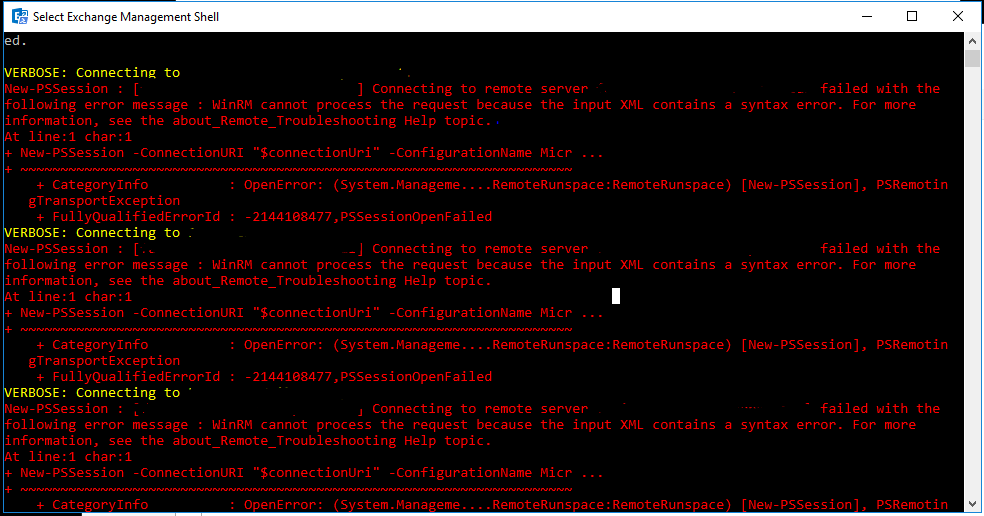
Note: If you try to open the web console you may have similar issues.
Having seen this message before with this particular client I know now that I have a time sync issue on my hands.
The First thing I look at is the time on the Exchange server.
Then I check the time on one of the Domain Controllers which is the PDC Emulator.
Then I check one of the other Domain Controllers and I find this.
As you can see the time difference is greater than 5 minutes which will cause your Exchange Server to be very unhappy.
Once you fix the time issue you can then try to reopen the Exchange Management Shell and you will see that you can connect without an issue.
Let me know if this was helpful by leaving a comment below.
thank you
Friday, July 13, 2018
VMWare Virtual Machine will not Start in vCenter
So I was asked by a client to do up "hardware upgrades" on one of their virtual machines. This VM is not production and is not running anything at the moment, but will soon become an SQL Server running an application. So I went and powered off the VM, logged into the C# vSphere client (they are running vSphere 6.0), and doubled the memory as requested by the client.
After making the change I went to power on the VM and I get presented with this pop up error message from VMWare
 The message itself seems pretty generic but I have actually seen this one before. This error has to do with an issue with the management agents on your ESXi host.
I followed the instructions found on this KB article but it did not resolve my issue. I also found this KB article which might yield better results but as this whole environment is production, I will need to wait to test that.
WORK AROUND:
In order to get this VM powered back online, I needed to log directly into the virtual host and power on the machine.
The VM powered on with no issues.
I hope you find this helpful and I will update this when I have a solution.
After making the change I went to power on the VM and I get presented with this pop up error message from VMWare

I followed the instructions found on this KB article but it did not resolve my issue. I also found this KB article which might yield better results but as this whole environment is production, I will need to wait to test that.
WORK AROUND:
In order to get this VM powered back online, I needed to log directly into the virtual host and power on the machine.
The VM powered on with no issues.
I hope you find this helpful and I will update this when I have a solution.
Friday, July 6, 2018
Windows Update cannot currently check for updates because the service is not running
I recently ran into an issue where a client of mine had a issue with Windows Update failing to run. It gave the end user a pop up error message that looks like this:


Once you click okay you will then see this on the Window's Update screen. Clicking Check for updates will result in the same message.

I did some googling and found that if I Stop the Windows Update service and then delete or rename C:\Windows\SoftwareDistribution and then restart the service you would then be able to run Windows update. However this did not work.
I then found a Microsoft Support KB article KB3102810 which will allow you to download an update which will resolve the issue. After the update is installed you will need to stop the Windows Update Service again, delete or rename the Software Distribution folder and restart the machine. Once it comes back up you can then click Check for Update and after about an hour (because it now has to rebuild it's update catalog) you will get a similar screen to what you will see below.

Hope you find this helpful with your Windows update issues.
Subscribe to:
Posts (Atom)
-
 In a previous Post I mentioned an issue that I had with a Certificate template on my Internal Enterprise CA not showing up when I tried to r...
 -
So I recently started working more with PowerCLI. After my time at VMWorld 2019 (which I will cover in another post) I realized how powerfu...
-
So I have been looking for ways to expand my knowledge with PowerCLI. This whole effort came about from going to VMWorld 2019 in San Francis...